
 Salesforce AppExchange
Built on Salesforce.
Resource Management & Capacity Planning in Salesforce
See who is assigned, where workloads overlap, and which roles need more capacity. Plan and adjust work directly in Salesforce.

Know Your Team's Capacity Before Committing More Work
A project needs more than a delivery date. It needs people with the right experience and enough time to complete the work.
Resource management helps you decide who should do each task and how to distribute the effort. Capacity planning compares upcoming work with the people and hours available to deliver it.
Together, they help you answer practical questions. Can your team take on another project? Which role is becoming a bottleneck? Where can you move work to ease an overloaded person's schedule?
PK4's Resource Management module brings these decisions into Salesforce. Its Assignments, Capacity, and People views connect task requirements with individual workloads and available weekly hours.
Manage Assignments and Capacity in One Place
View Assignments Across Projects
See assigned tasks against each person's name on a shared timeline. Unassigned work appears below, grouped by discipline or role.
Switch between day, week, month, quarter, and year views. Review immediate commitments or look ahead at upcoming work.
Use the project filter to focus on selected projects. People filters narrow the view by administrative unit, department, discipline, role, role level, or team.
Assign Tasks with Drag and Drop
Drag an unassigned task onto a person's row to create an assignment. The assignment records the task dates and allocated hours.
PK4 checks the person's discipline, role, and role level against the task's requirements. A mismatch prompts a warning before you proceed.
Managers can review the mismatch and decide whether the assignment is appropriate.
Spot Overloaded People
Workload indicators compare assigned hours with each person's configured weekly availability. Color changes highlight lighter workloads, approaching capacity, and overload.
Hover over an indicator to see the assigned hours and task count for that period. Use this information to review competing commitments before adding more work.
Weekly availability can differ between people, allowing the plan to reflect different working-hour commitments.
Review Capacity by Discipline or Role
The Capacity view groups demand by discipline or role. See where task requirements exceed available capacity and where additional hours remain available.
For example, a project may have enough people overall but still face a shortage of engineers or project managers.
Expand a group to inspect its tasks and individual workload details. Review the dates, hours, and people behind a capacity gap.

Share Work Across Multiple People
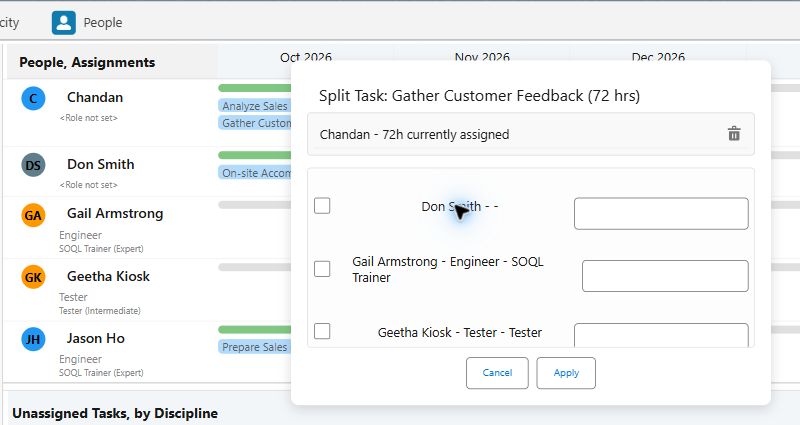
Split a task's assigned hours across multiple people when the work needs to be shared.
The split view shows task hours and existing assignments. Select additional people and enter the hours to allocate to each.
Managers can also edit assignment records or deassign work as plans change.
Keep Relevant People Details in View
The People tab provides a searchable list of team members available to the manager. Choose the columns that matter for planning.
Review details such as department, team, reporting manager, discipline, and role. Column preferences are retained for future use.

Resource Planning for Teams That Work in Salesforce
Consulting and Professional Services
Plan staffing across overlapping client engagements. Review existing assignments before allocating consultants to another project.
Filter by role or discipline to find the relevant people. Split work when an engagement needs contributions from several team members.
IT and Software Delivery
Review demand for developers, testers, and project managers across delivery work.
Use the Capacity view to identify pressure on a particular discipline. Inspect individual workloads before deciding who should take on the next task.
Engineering and Technical Services
Organize task requirements by discipline and role level. Review assignment warnings when a person's profile differs from the work's requirements.
Compare upcoming demand across disciplines to inform staffing discussions and project scheduling.
Internal Projects and Operations
See how departmental initiatives compete for the same people. Filter assignments by team, department, or project.
Review workloads before adding a new initiative. Adjust assignments when priorities or delivery dates change.
Ask PK4 AI Subagents for Planning Support
PK4's AI subagents provide another way to review resource information through natural-language questions.
- Capacity and Workload: Summarize your assigned workload and check your configured weekly capacity.
- Task Management: Find unassigned tasks, identify tasks with over-capacity assignees, and compare a person's skills and certifications with task requirements.
- Project Management: Review a project's planned and assigned hours to identify staffing gaps.
Access depends on your PK4 Agentforce setup and Salesforce permissions. Data-changing actions require approval.
Getting Started with PK4 Resource Management
- Set up access. Assign the Resource Management module license and appropriate Salesforce permissions to managers.
- Prepare people details. Record weekly availability, reporting relationships, and relevant role and discipline information.
- Define the work. Set task dates, planned hours, and staffing requirements.
- Review and assign. Use Assignments for allocation, Capacity for staffing reviews, and People for resource details.
Resource Management & Capacity Planning: FAQs
What is the difference between resource management and capacity planning?
Resource management allocates people to work. Capacity planning assesses whether available people and hours can meet upcoming demand.
PK4 supports both through assignment timelines and capacity views grouped by discipline or role.
Can I see workloads across multiple projects?
Yes. The Assignments view displays work across projects, with filters to focus on the projects and people relevant to your review.
Can a task be assigned to more than one person?
Yes. Use the split assignment option to allocate task hours across multiple people.
What do the workload indicators measure?
They compare planned assignment hours with configured weekly availability. They show how much of a person's capacity has been allocated.
Does resource planning happen inside Salesforce?
Yes. Managers work with PK4's task, assignment, and people records directly in Salesforce.
Plan Your Next Commitment with a Clear View of Capacity
See your team's assignments and identify staffing gaps before agreeing to more work. Adjust allocations as priorities change.
Explore PK4 Resource Management & Capacity Planning in a free demo.